




Color Correction Online Free: Fix Photo Colors Fast
Use Pokecut's color correction tool to fix yellow, blue, dull, or underlit photos online with simple sliders and real-time preview.







Why Choose Pokecut's Color Correction Tool?
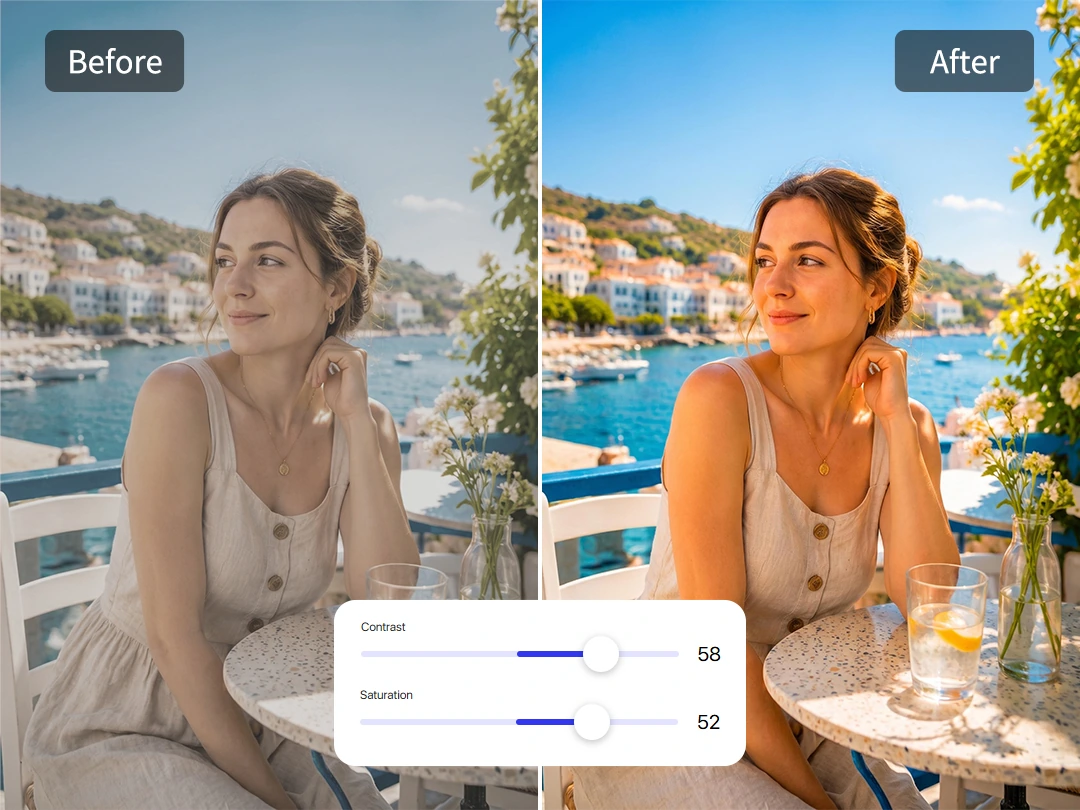
Adjust Photo Colors With Simple Sliders
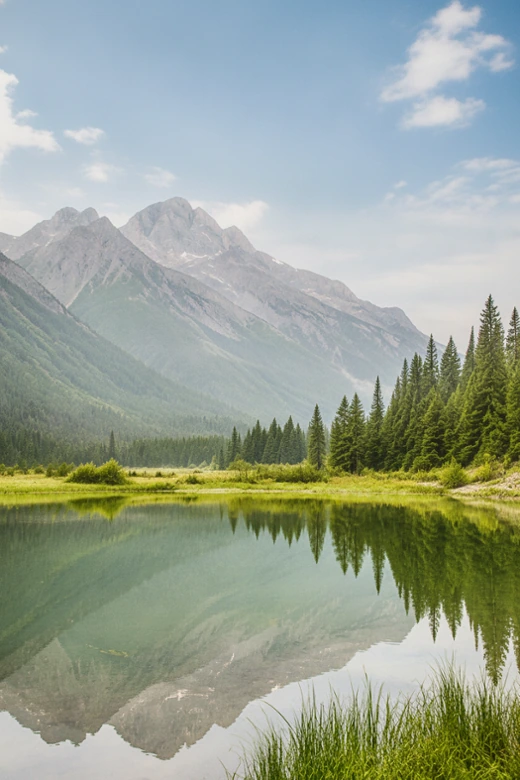
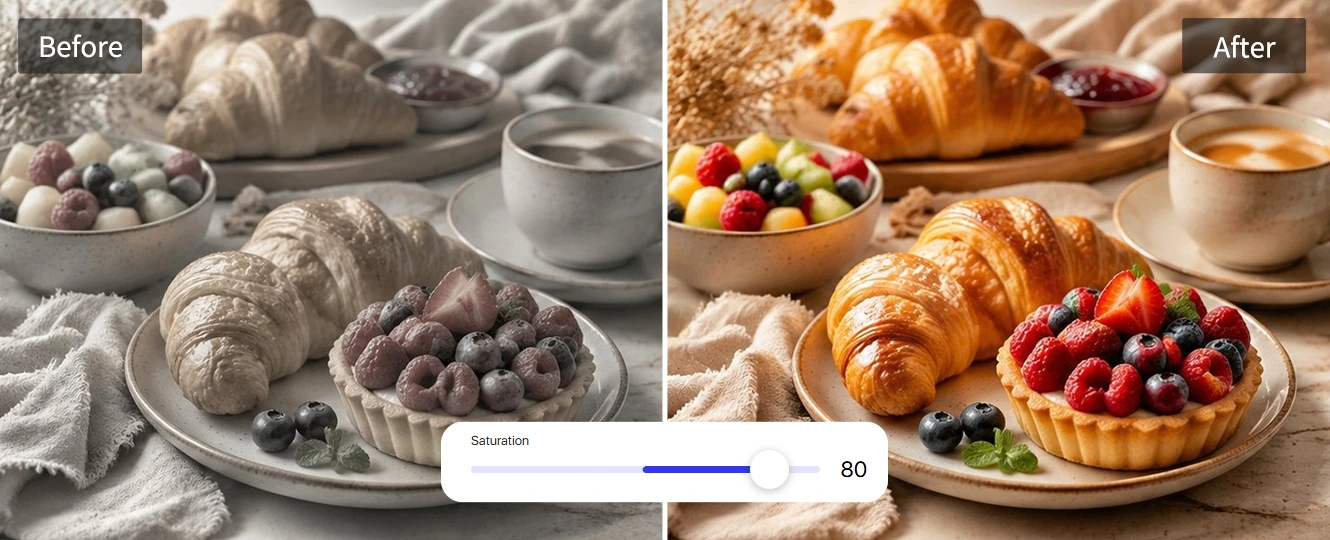
Color correction should not feel like a lesson in curves, channels, or hidden Photoshop panels. Pokecut replaces complex menus with responsive sliders for tone, saturation, temperature, and tint. This layout lets you adjust photo colors by watching the image itself instead of memorizing professional jargon. If a phone shot looks too yellow under indoor lights or too blue on a cloudy day, a few quick moves pull it back toward a natural look.
The workflow offers the ideal balance between manual precision and everyday speed. Move a slider, check the live preview, and stop the moment the skin, product, wall, or sky looks right to your eye. This approach makes manual color correction highly practical for family pictures, store listings, creator posts, or any image where the subject is great but the color balance feels off.
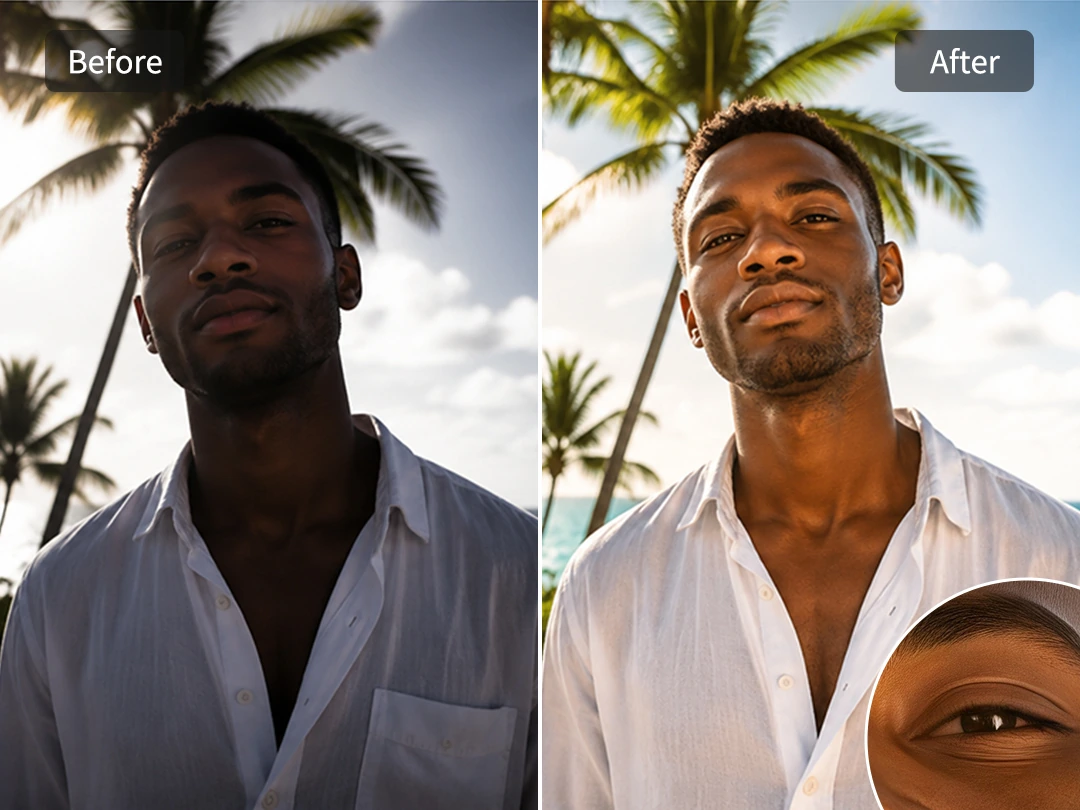
Balance Light Without Flattening the Photo
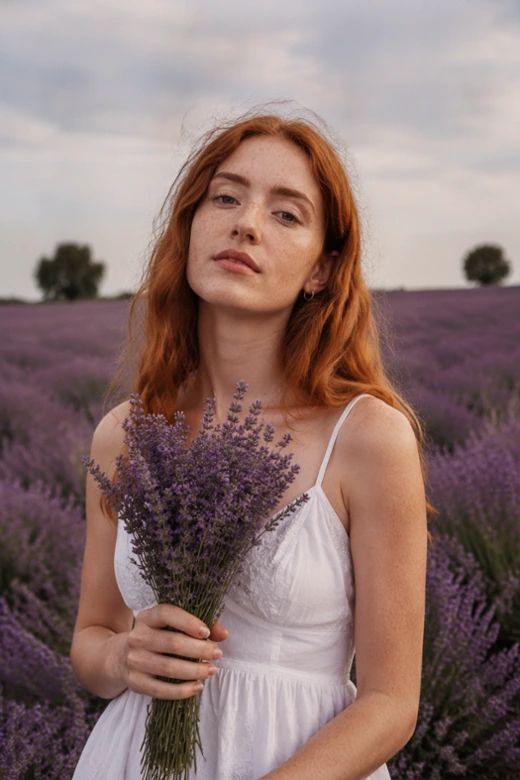
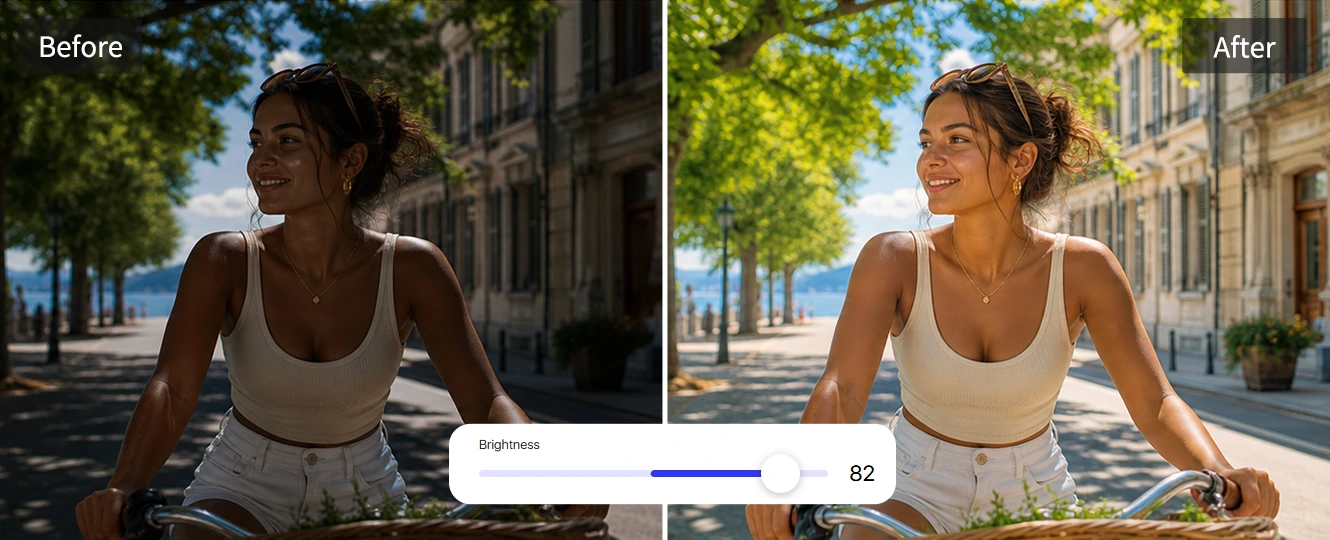
Bad lighting frequently leaves a promising photograph looking dull and unfinished. A bright window can easily blow out one side of a face, a backlit subject might sink into shadow, or a product shot can look gray even when the item is fine. To prevent this, you get independent sliders for exposure, contrast, highlights, and shadows. These dedicated controls allow you to relight a photo without pushing the whole image into a flat, unnatural brightness.
Dragging the sliders helps you pull details out of dark areas, soften harsh highlights, and reclaim shape where the image feels washed out. The goal here is to make the light believable again so that the face, fabric, room, or product maintains its natural depth, rather than covering the picture with a dramatic filter.

Pair Color Fixes With Sharper Image Quality
Some images require further processing beyond standard color correction online. After finishing your color adjustments, you might still notice soft edges, noisy shadows, or fine product textures that appear a bit dull. Pokecut allows you to seamlessly switch to our photo enhancer, ensuring your final asset looks clean as well as perfectly balanced.
This multi-tool workflow is highly effective when preparing batches of product images, creator covers, or client previews shot in mixed environments. We recommend correcting the color first, then using our tool to sharpen details without making the image look brittle. The final result is a polished file with richer color, clearer texture, and fewer distractions than your original upload.
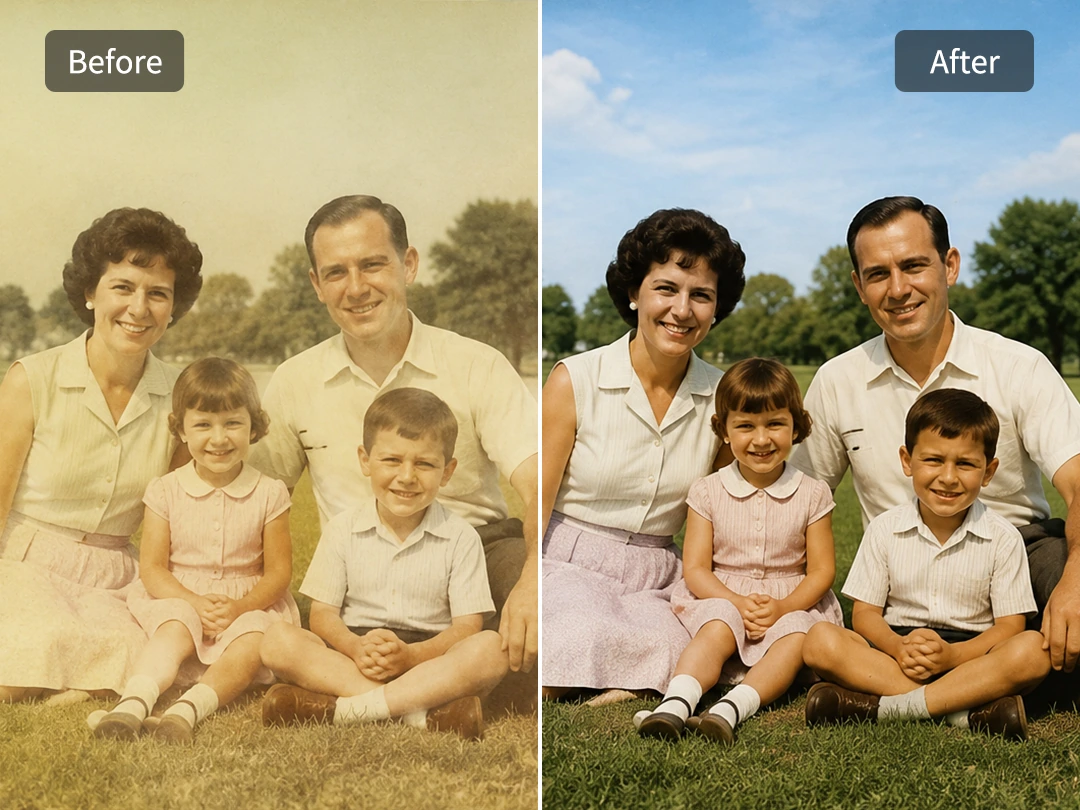
Bring Faded Old Photos Back to Life
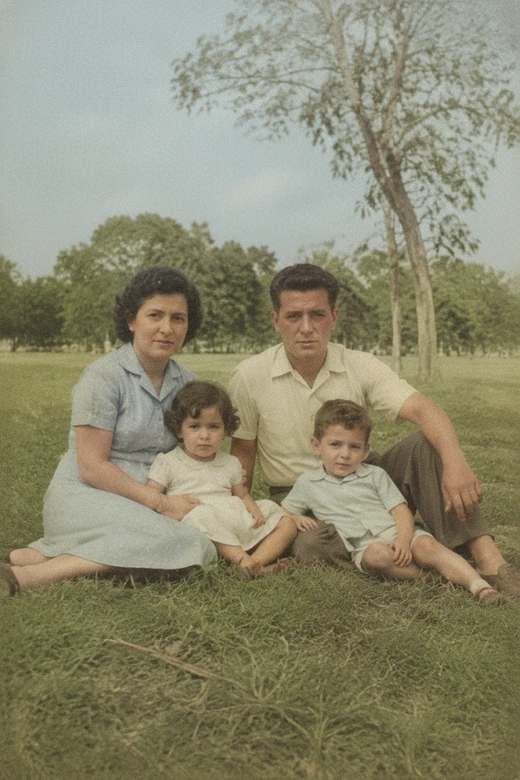
Old photos often fade slowly over the decades, until a blue sky turns gray, vibrant clothes lose their pop, and faces take on a heavy yellow cast. Pokecut can restore old photos while focusing entirely on gentle color rebuilding instead of over-painting. Simply scan or upload your vintage picture, then use our tool to bring the scene closer to its original feeling.
The most successful correction always keeps the historical character of an old photograph intact. You can manually warm a faded portrait or return life to grass and clothing without making the final file look fake or newly generated. It provides a respectful, controlled way to optimize family photos that matter, especially when you want to share them again.
Correct Colors and Lighting with Sliders
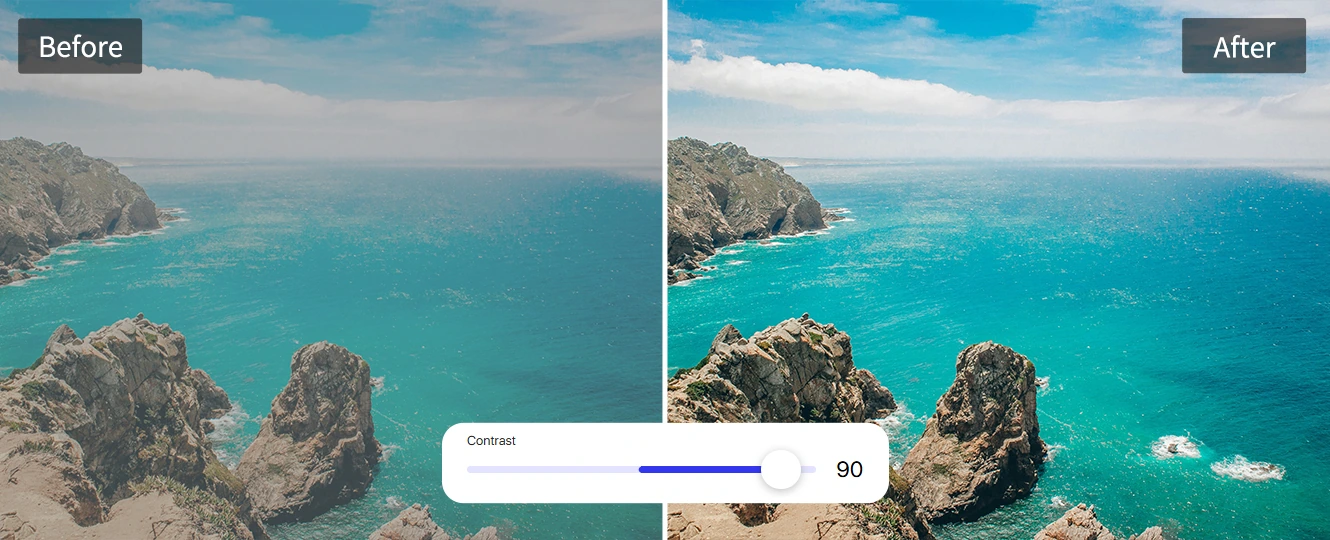

How to Correct Photo Colour Online for Free
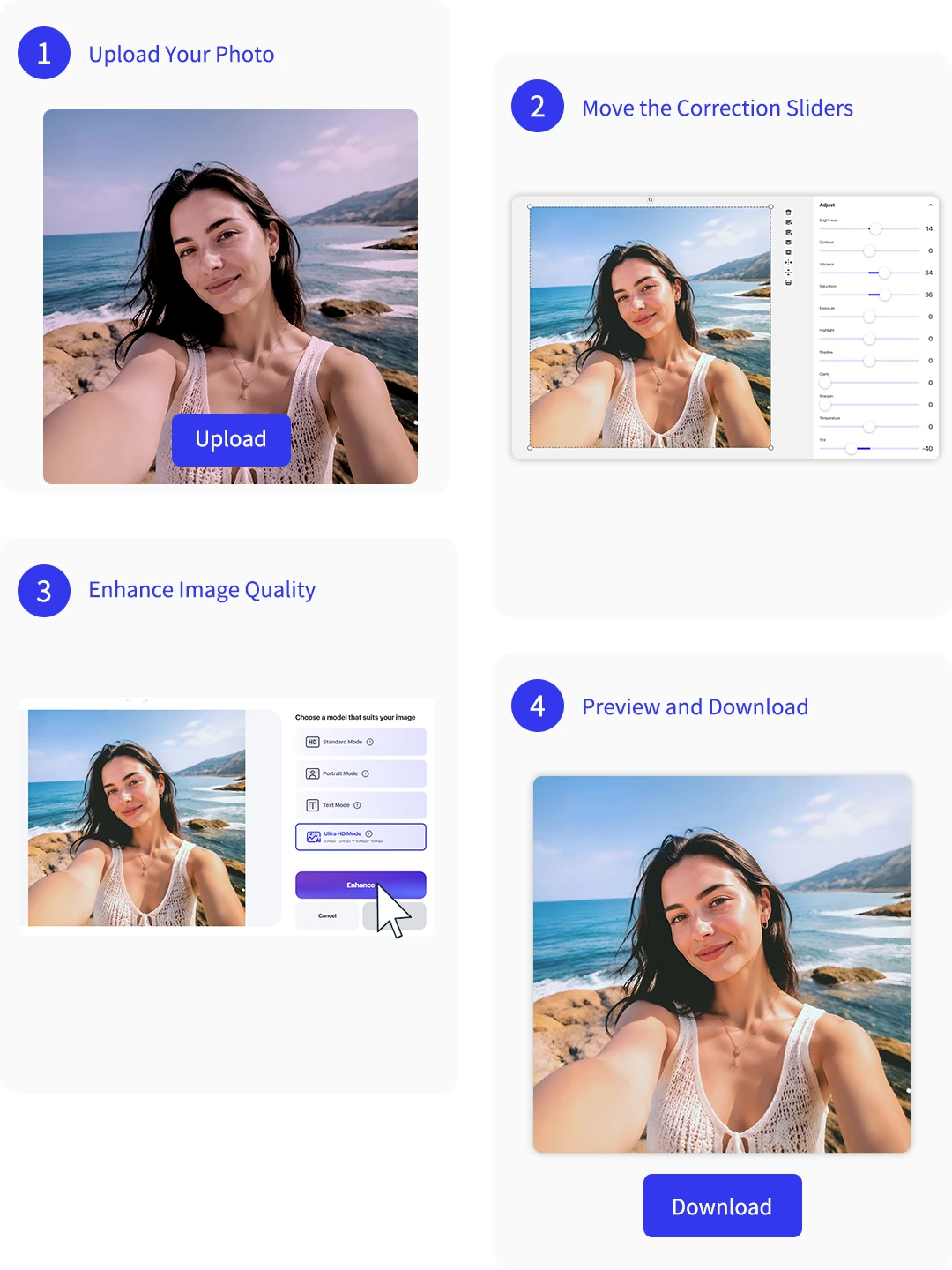
Step 1: Upload Your Photo
Choose a photo with yellow light, blue cast, dull color, low contrast, or uneven exposure that needs quick correction.
Step 2: Move the Correction Sliders
Adjust sliders like exposure, contrast, temperature, saturation, and tint to easily correct color imbalance or lighting flaws.
Step 3: Enhance Image Quality
Switch to our dedicated quality tool to sharpen soft edges, reduce digital noise, and bring out clear textures after your color work is done.
Step 4: Preview and Download
Check the real-time preview to ensure everything looks right, then download a clean file ready for posting, selling, printing, or sharing.

Explore More Features of Pokecut
Color Correction vs. Color Grading
Color correction fixes color problems first. Color grading adds a creative mood after the photo already looks balanced.
What Do Users Say About Pokecut's Color Correction?
Users trust Pokecut for simple, controlled photo color fixes.


Anna P.

"My product photos always looked yellow under my apartment lights. Pokecut helped me fix the color without making the white background look gray."
Miles R.
"I liked that it was all sliders. I could brighten a backlit portrait and bring down the highlights without guessing through presets."
Jenna K.
"I used it on old family scans that had turned yellow. The colors came back, but the photos still looked like old photos, which is what I wanted."
Leo C.
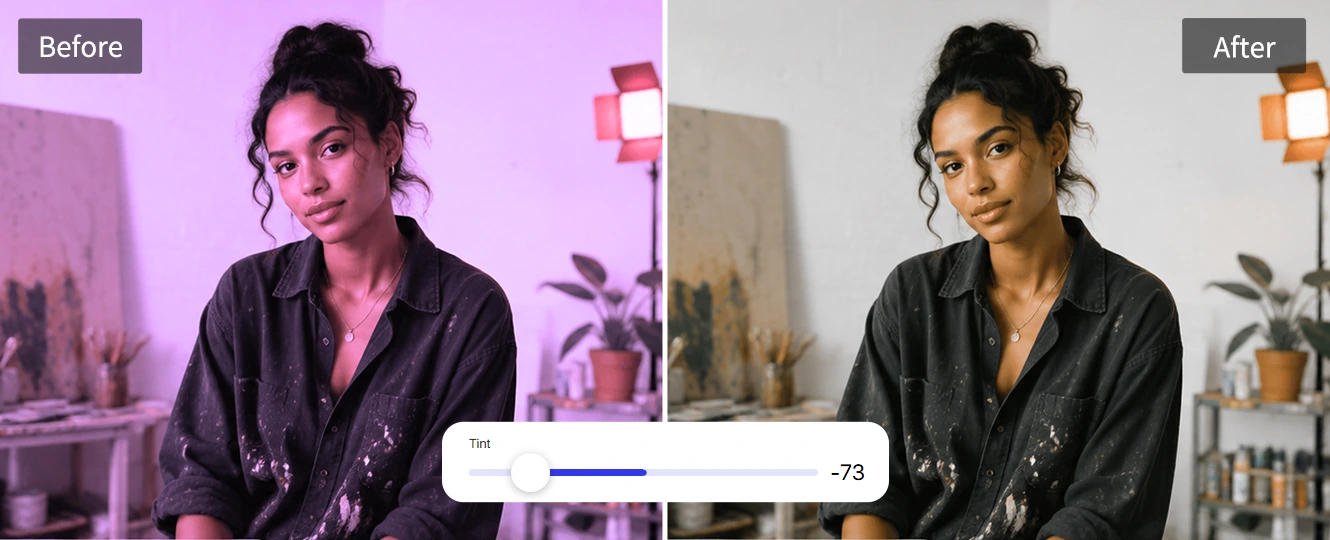
"The tint slider saved a set of photos shot under green office lighting. It took a few minutes and looked much more natural."
Priya N.
"After correcting the color, I used the enhancer on the same images. That combo made my store photos look cleaner without a full reshoot."
Sam T.
"I needed quick color correction images for a client preview. The tool was simple enough that I did not have to open a heavy editor."
Anna P.
"My product photos always looked yellow under my apartment lights. Pokecut helped me fix the color without making the white background look gray."
Miles R.
"I liked that it was all sliders. I could brighten a backlit portrait and bring down the highlights without guessing through presets."
Jenna K.
"I used it on old family scans that had turned yellow. The colors came back, but the photos still looked like old photos, which is what I wanted."
Leo C.
"The tint slider saved a set of photos shot under green office lighting. It took a few minutes and looked much more natural."
Priya N.
"After correcting the color, I used the enhancer on the same images. That combo made my store photos look cleaner without a full reshoot."
Sam T.
"I needed quick color correction images for a client preview. The tool was simple enough that I did not have to open a heavy editor."
Anna P.
"My product photos always looked yellow under my apartment lights. Pokecut helped me fix the color without making the white background look gray."
Miles R.
"I liked that it was all sliders. I could brighten a backlit portrait and bring down the highlights without guessing through presets."
Jenna K.
"I used it on old family scans that had turned yellow. The colors came back, but the photos still looked like old photos, which is what I wanted."
Leo C.
"The tint slider saved a set of photos shot under green office lighting. It took a few minutes and looked much more natural."
Priya N.
"After correcting the color, I used the enhancer on the same images. That combo made my store photos look cleaner without a full reshoot."
Sam T.
"I needed quick color correction images for a client preview. The tool was simple enough that I did not have to open a heavy editor."
Anna P.
"My product photos always looked yellow under my apartment lights. Pokecut helped me fix the color without making the white background look gray."
Miles R.
"I liked that it was all sliders. I could brighten a backlit portrait and bring down the highlights without guessing through presets."
Jenna K.
"I used it on old family scans that had turned yellow. The colors came back, but the photos still looked like old photos, which is what I wanted."
Leo C.
"The tint slider saved a set of photos shot under green office lighting. It took a few minutes and looked much more natural."
Priya N.
"After correcting the color, I used the enhancer on the same images. That combo made my store photos look cleaner without a full reshoot."
Sam T.
"I needed quick color correction images for a client preview. The tool was simple enough that I did not have to open a heavy editor."
Anna P.
"My product photos always looked yellow under my apartment lights. Pokecut helped me fix the color without making the white background look gray."
Miles R.
"I liked that it was all sliders. I could brighten a backlit portrait and bring down the highlights without guessing through presets."
Jenna K.
"I used it on old family scans that had turned yellow. The colors came back, but the photos still looked like old photos, which is what I wanted."
Leo C.
"The tint slider saved a set of photos shot under green office lighting. It took a few minutes and looked much more natural."
Priya N.
"After correcting the color, I used the enhancer on the same images. That combo made my store photos look cleaner without a full reshoot."
Sam T.
"I needed quick color correction images for a client preview. The tool was simple enough that I did not have to open a heavy editor."
Leo C.
"The tint slider saved a set of photos shot under green office lighting. It took a few minutes and looked much more natural."
Priya N.
"After correcting the color, I used the enhancer on the same images. That combo made my store photos look cleaner without a full reshoot."
Sam T.
"I needed quick color correction images for a client preview. The tool was simple enough that I did not have to open a heavy editor."
Anna P.
"My product photos always looked yellow under my apartment lights. Pokecut helped me fix the color without making the white background look gray."
Miles R.
"I liked that it was all sliders. I could brighten a backlit portrait and bring down the highlights without guessing through presets."
Jenna K.
"I used it on old family scans that had turned yellow. The colors came back, but the photos still looked like old photos, which is what I wanted."
Leo C.
"The tint slider saved a set of photos shot under green office lighting. It took a few minutes and looked much more natural."
Priya N.
"After correcting the color, I used the enhancer on the same images. That combo made my store photos look cleaner without a full reshoot."
Sam T.
"I needed quick color correction images for a client preview. The tool was simple enough that I did not have to open a heavy editor."
Anna P.
"My product photos always looked yellow under my apartment lights. Pokecut helped me fix the color without making the white background look gray."
Miles R.
"I liked that it was all sliders. I could brighten a backlit portrait and bring down the highlights without guessing through presets."
Jenna K.
"I used it on old family scans that had turned yellow. The colors came back, but the photos still looked like old photos, which is what I wanted."
Leo C.
"The tint slider saved a set of photos shot under green office lighting. It took a few minutes and looked much more natural."
Priya N.
"After correcting the color, I used the enhancer on the same images. That combo made my store photos look cleaner without a full reshoot."
Sam T.
"I needed quick color correction images for a client preview. The tool was simple enough that I did not have to open a heavy editor."
Anna P.
"My product photos always looked yellow under my apartment lights. Pokecut helped me fix the color without making the white background look gray."
Miles R.
"I liked that it was all sliders. I could brighten a backlit portrait and bring down the highlights without guessing through presets."
Jenna K.
"I used it on old family scans that had turned yellow. The colors came back, but the photos still looked like old photos, which is what I wanted."
Leo C.
"The tint slider saved a set of photos shot under green office lighting. It took a few minutes and looked much more natural."
Priya N.
"After correcting the color, I used the enhancer on the same images. That combo made my store photos look cleaner without a full reshoot."
Sam T.
"I needed quick color correction images for a client preview. The tool was simple enough that I did not have to open a heavy editor."
Anna P.
"My product photos always looked yellow under my apartment lights. Pokecut helped me fix the color without making the white background look gray."
Miles R.
"I liked that it was all sliders. I could brighten a backlit portrait and bring down the highlights without guessing through presets."
Jenna K.
"I used it on old family scans that had turned yellow. The colors came back, but the photos still looked like old photos, which is what I wanted."
Leo C.
"The tint slider saved a set of photos shot under green office lighting. It took a few minutes and looked much more natural."
Priya N.
"After correcting the color, I used the enhancer on the same images. That combo made my store photos look cleaner without a full reshoot."
Sam T.
"I needed quick color correction images for a client preview. The tool was simple enough that I did not have to open a heavy editor."
Anna P.
"My product photos always looked yellow under my apartment lights. Pokecut helped me fix the color without making the white background look gray."
Miles R.
"I liked that it was all sliders. I could brighten a backlit portrait and bring down the highlights without guessing through presets."
Jenna K.
"I used it on old family scans that had turned yellow. The colors came back, but the photos still looked like old photos, which is what I wanted."
Reviews from: Reddit, Product Hunt, G2, TrustRadius, Google Play, App Store, and more.
Pokecut Trusted by Millions of Leaders and Users

1M+ Users Worldwide
Pokecut generates over 500,000 images every day

#2 on Product Hunt
Pokecut launched and won #2 product of the day

Professional Privacy Protection
Ensure 100% data privacy for every photo

Trusted by Well-known Brands
Apple、Google、Paypal、Stripe、Product hunt、G2、TrustRadius
Color Correction Questions
Does adjusting the colors or lighting lower the original photo resolution?
No. Pokecut processes your color adjustments on the original pixel dimensions, ensuring your image stays just as sharp as when you uploaded it.
Will the manual color changes look exactly the same on all screens?
While screen calibrations vary, Pokecut uses standard sRGB color spaces to ensure your edits look as consistent and accurate as possible across devices.
How do I know if I need to adjust Temperature or Tint?
Use Temperature if your photo looks too orange/yellow or blue. Use Tint if the image has a strange greenish or purplish color cast from artificial lights.
What is the difference between Contrast and Exposure?
Exposure shifts the entire image brighter or darker. Contrast only changes the gap between the brightest and darkest parts to add depth.
Can I edit images directly from my phone browser?
Yes. The slider interface is fully optimized for mobile screens, allowing you to drag and adjust lighting or colors smoothly using touch controls.