




Remove Logo from Photo Online for Free with Precise AI
Brush over the logo you want to remove and let Pokecut's AI logo remover rebuild the covered area from its visual surroundings. Clean up logos from product photos, personal images, marketing graphics, and more while keeping surrounding details natural.
✨ No Sign-up Required ✨ Free Usage ✨HD Downloads






By uploading an image or URL you agree to our Terms of Use and Privacy Policy
What Makes Pokecut a Better Logo Remover?

Mark Only the Logo Area You Want to Remove
Brush only over the logo so nearby faces, product edges, and important text stay outside the edit. A precise selection gives the AI logo remover a clear repair boundary and helps prevent broad changes to details you want to keep. If an edge needs another pass, reduce the brush size and refine that small area before processing again.
This controlled workflow makes it easy to delete logo or remove other unwanted objects in the same way. You decide where the change happens, while AI focuses its reconstruction inside the marked region.
Rebuild the Covered Logo Area with Context-Aware AI
Mark the logo area and let AI inpainting treat it as a region that needs new visual detail. The model reads nearby color and texture, along with edge and lighting cues, to estimate content that fits the surrounding image instead of covering the logo with a flat blur.
This approach helps a logo remover from image handle marks that cross skin, gradients, or repeated surfaces. Results still depend on visible context, so use a tighter selection or repair a smaller section when an edge looks difficult.
Keep the Original Resolution After Logo Removal
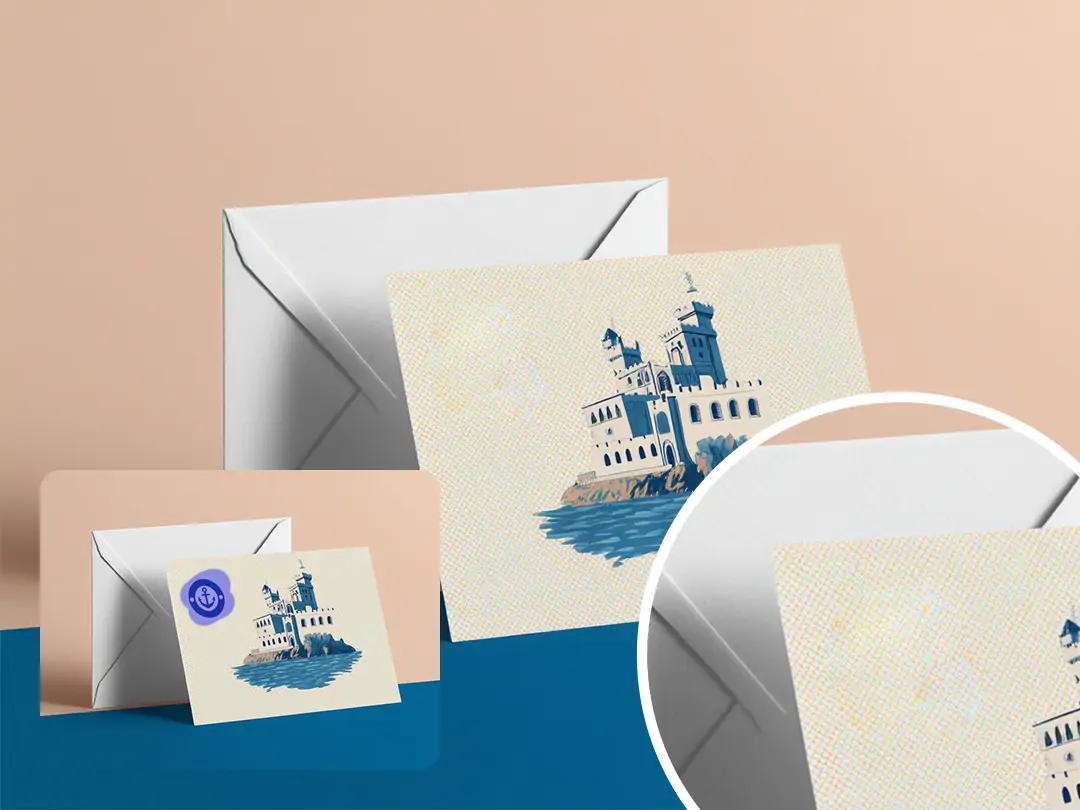
Keep the source dimensions when you download the image after you remove logo from image, so product details and the overall canvas remain suitable for stores or presentations. Pokecut's AI logo eraser can export the cleaned image at its original resolution, while keeping the reconstruction inside the area you marked.
A low-quality source can still look soft, and a large covered region may need another repair pass. For a clearer finishing step after logo removal, enhance the image with Photo Enhancer to sharpen details and improve overall clarity.

Auto-Detect Common Logo Watermarks and Refine
Start with automatic removal when the image contains a clear logo watermark, text mark, or distinct graphic. AI can quickly detect and remove common logo marks without requiring you to paint over every repeated letter by hand. This works best when the logo is visually separate from its background.
A faint or blended logo may not be fully detected in the first pass. Mark any remaining pixels with the local brush and use a smaller selection around difficult edges. The automatic watermark remover reduces repetitive work, while manual refinement gives you more control when you need to remove logo from photo with greater precision.
When Can You Use Pokecut to Remove Logos?


Keep Editing After Removing Logo from Photo

Replace an Old Logo with New Branding
Replace branding after clearing a logo from an image you own or may edit. With AI Replace, guide the area with a prompt. A reference image or template can also direct the result before you review it against brand guidelines.

Add or Update Text After Removing the Logo
Add a current year, website, or campaign label after removing outdated text from an authorized image. Use edit text in an image to place accurate new wording, then match its spacing and contrast to the rest of the design.

Fill Larger Gaps with Generative AI
Fill a larger cleaned area when a small local repair does not provide enough visual detail. Generative Fill can create context-aware content for the selected space or extend the canvas, giving you a fuller result to inspect before publishing.
Which Logo Remover Fits Your Workflow Best?
Compare how each tool handles removal control and upload requirements. Check supported formats and post-cleanup options. Pokecut pairs automatic and brush-based removal with a broader AI workspace for enhancement, rebranding and creative refinement.
How to Remove a Logo from a Picture
Step 1: Upload Your Image
Choose a JPG, JPEG, PNG, WEBP, or BMP image that contains the logo you want to remove. The editor opens in your browser, so you can start without installing software or creating an account first.
Step 2: Brush the Logo and Click Remove
Paint over only the unwanted logo, adjust the selection around important edges, and click Remove. AI rebuilds the marked area from nearby visual context. Use another smaller pass if a difficult edge still needs attention.
Step 3: Preview and Download
Inspect the repaired area at a useful zoom, compare it with the source, and download the finished image. Pokecut can keep the original resolution, helping the result remain ready for product pages, presentations, and creative work.


What Users Say About Pokecut AI Logo Removal
People value a logo-removal workflow that lets them control the selected area and inspect the repair. These experiences show where automatic cleanup helps and where a smaller brush pass can improve the finish.


Emily R.

"I cleaned an outdated logo from one of my own product photos. The brush made it easy to avoid the packaging text, and the downloaded image kept the size I needed for my store."
Marcus T.
"The logo sat close to a jacket seam, so I used two smaller passes instead of one large selection. That gave me a more natural repair and saved me from opening desktop software."
Olivia K.
"Automatic removal handled the obvious watermark, but I still needed the brush for a faint edge. The combined workflow worked well. a stronger first preview zoom would make checking details even easier."
Daniel P.
"I updated several authorized campaign visuals for a new presentation. Being able to mark only the old badge kept the rest of the design intact and made the cleanup feel controlled."
Sophia M.
"I removed a date stamp from a family photo and checked the background before downloading. The three-step process was clear, and I liked that I could start without creating an account."
Ethan C.
"For a real estate deck, I cleaned a timestamp near a window frame. A tight brush selection helped preserve the straight lines, and the original-resolution export fit our existing slide layout."
Grace L.
"The inpainting explanation matched what I saw in the result: the tool used nearby color and texture instead of leaving a blurry block. It worked best when I selected a smaller area."
Noah B.
"I used it on a logo over a gradient. The first repair needed a second pass around one edge, but the local brush gave me enough control to finish the image without restarting."
Chloe S.
"After removing an old mark, I continued with the replacement workflow for a refreshed mockup. Keeping the steps connected made the rebranding task much more manageable."
Lucas W.
"I wanted a quick browser tool for a social graphic I was allowed to edit. The upload, brush, preview, and download flow was simple, and the final image stayed clear in the post."
Emily R.
"I cleaned an outdated logo from one of my own product photos. The brush made it easy to avoid the packaging text, and the downloaded image kept the size I needed for my store."
Marcus T.
"The logo sat close to a jacket seam, so I used two smaller passes instead of one large selection. That gave me a more natural repair and saved me from opening desktop software."
Olivia K.
"Automatic removal handled the obvious watermark, but I still needed the brush for a faint edge. The combined workflow worked well. a stronger first preview zoom would make checking details even easier."
Daniel P.
"I updated several authorized campaign visuals for a new presentation. Being able to mark only the old badge kept the rest of the design intact and made the cleanup feel controlled."
Sophia M.
"I removed a date stamp from a family photo and checked the background before downloading. The three-step process was clear, and I liked that I could start without creating an account."
Ethan C.
"For a real estate deck, I cleaned a timestamp near a window frame. A tight brush selection helped preserve the straight lines, and the original-resolution export fit our existing slide layout."
Grace L.
"The inpainting explanation matched what I saw in the result: the tool used nearby color and texture instead of leaving a blurry block. It worked best when I selected a smaller area."
Noah B.
"I used it on a logo over a gradient. The first repair needed a second pass around one edge, but the local brush gave me enough control to finish the image without restarting."
Chloe S.
"After removing an old mark, I continued with the replacement workflow for a refreshed mockup. Keeping the steps connected made the rebranding task much more manageable."
Lucas W.
"I wanted a quick browser tool for a social graphic I was allowed to edit. The upload, brush, preview, and download flow was simple, and the final image stayed clear in the post."
Emily R.
"I cleaned an outdated logo from one of my own product photos. The brush made it easy to avoid the packaging text, and the downloaded image kept the size I needed for my store."
Marcus T.
"The logo sat close to a jacket seam, so I used two smaller passes instead of one large selection. That gave me a more natural repair and saved me from opening desktop software."
Olivia K.
"Automatic removal handled the obvious watermark, but I still needed the brush for a faint edge. The combined workflow worked well. a stronger first preview zoom would make checking details even easier."
Daniel P.
"I updated several authorized campaign visuals for a new presentation. Being able to mark only the old badge kept the rest of the design intact and made the cleanup feel controlled."
Sophia M.
"I removed a date stamp from a family photo and checked the background before downloading. The three-step process was clear, and I liked that I could start without creating an account."
Ethan C.
"For a real estate deck, I cleaned a timestamp near a window frame. A tight brush selection helped preserve the straight lines, and the original-resolution export fit our existing slide layout."
Grace L.
"The inpainting explanation matched what I saw in the result: the tool used nearby color and texture instead of leaving a blurry block. It worked best when I selected a smaller area."
Noah B.
"I used it on a logo over a gradient. The first repair needed a second pass around one edge, but the local brush gave me enough control to finish the image without restarting."
Chloe S.
"After removing an old mark, I continued with the replacement workflow for a refreshed mockup. Keeping the steps connected made the rebranding task much more manageable."
Lucas W.
"I wanted a quick browser tool for a social graphic I was allowed to edit. The upload, brush, preview, and download flow was simple, and the final image stayed clear in the post."
Emily R.
"I cleaned an outdated logo from one of my own product photos. The brush made it easy to avoid the packaging text, and the downloaded image kept the size I needed for my store."
Marcus T.
"The logo sat close to a jacket seam, so I used two smaller passes instead of one large selection. That gave me a more natural repair and saved me from opening desktop software."
Olivia K.
"Automatic removal handled the obvious watermark, but I still needed the brush for a faint edge. The combined workflow worked well. a stronger first preview zoom would make checking details even easier."
Daniel P.
"I updated several authorized campaign visuals for a new presentation. Being able to mark only the old badge kept the rest of the design intact and made the cleanup feel controlled."
Sophia M.
"I removed a date stamp from a family photo and checked the background before downloading. The three-step process was clear, and I liked that I could start without creating an account."
Ethan C.
"For a real estate deck, I cleaned a timestamp near a window frame. A tight brush selection helped preserve the straight lines, and the original-resolution export fit our existing slide layout."
Grace L.
"The inpainting explanation matched what I saw in the result: the tool used nearby color and texture instead of leaving a blurry block. It worked best when I selected a smaller area."
Noah B.
"I used it on a logo over a gradient. The first repair needed a second pass around one edge, but the local brush gave me enough control to finish the image without restarting."
Chloe S.
"After removing an old mark, I continued with the replacement workflow for a refreshed mockup. Keeping the steps connected made the rebranding task much more manageable."
Lucas W.
"I wanted a quick browser tool for a social graphic I was allowed to edit. The upload, brush, preview, and download flow was simple, and the final image stayed clear in the post."
Emily R.
"I cleaned an outdated logo from one of my own product photos. The brush made it easy to avoid the packaging text, and the downloaded image kept the size I needed for my store."
Marcus T.
"The logo sat close to a jacket seam, so I used two smaller passes instead of one large selection. That gave me a more natural repair and saved me from opening desktop software."
Olivia K.
"Automatic removal handled the obvious watermark, but I still needed the brush for a faint edge. The combined workflow worked well. a stronger first preview zoom would make checking details even easier."
Daniel P.
"I updated several authorized campaign visuals for a new presentation. Being able to mark only the old badge kept the rest of the design intact and made the cleanup feel controlled."
Sophia M.
"I removed a date stamp from a family photo and checked the background before downloading. The three-step process was clear, and I liked that I could start without creating an account."
Ethan C.
"For a real estate deck, I cleaned a timestamp near a window frame. A tight brush selection helped preserve the straight lines, and the original-resolution export fit our existing slide layout."
Grace L.
"The inpainting explanation matched what I saw in the result: the tool used nearby color and texture instead of leaving a blurry block. It worked best when I selected a smaller area."
Noah B.
"I used it on a logo over a gradient. The first repair needed a second pass around one edge, but the local brush gave me enough control to finish the image without restarting."
Chloe S.
"After removing an old mark, I continued with the replacement workflow for a refreshed mockup. Keeping the steps connected made the rebranding task much more manageable."
Lucas W.
"I wanted a quick browser tool for a social graphic I was allowed to edit. The upload, brush, preview, and download flow was simple, and the final image stayed clear in the post."
Daniel P.
"I updated several authorized campaign visuals for a new presentation. Being able to mark only the old badge kept the rest of the design intact and made the cleanup feel controlled."
Sophia M.
"I removed a date stamp from a family photo and checked the background before downloading. The three-step process was clear, and I liked that I could start without creating an account."
Ethan C.
"For a real estate deck, I cleaned a timestamp near a window frame. A tight brush selection helped preserve the straight lines, and the original-resolution export fit our existing slide layout."
Grace L.
"The inpainting explanation matched what I saw in the result: the tool used nearby color and texture instead of leaving a blurry block. It worked best when I selected a smaller area."
Noah B.
"I used it on a logo over a gradient. The first repair needed a second pass around one edge, but the local brush gave me enough control to finish the image without restarting."
Chloe S.
"After removing an old mark, I continued with the replacement workflow for a refreshed mockup. Keeping the steps connected made the rebranding task much more manageable."
Lucas W.
"I wanted a quick browser tool for a social graphic I was allowed to edit. The upload, brush, preview, and download flow was simple, and the final image stayed clear in the post."
Emily R.
"I cleaned an outdated logo from one of my own product photos. The brush made it easy to avoid the packaging text, and the downloaded image kept the size I needed for my store."
Marcus T.
"The logo sat close to a jacket seam, so I used two smaller passes instead of one large selection. That gave me a more natural repair and saved me from opening desktop software."
Olivia K.
"Automatic removal handled the obvious watermark, but I still needed the brush for a faint edge. The combined workflow worked well. a stronger first preview zoom would make checking details even easier."
Daniel P.
"I updated several authorized campaign visuals for a new presentation. Being able to mark only the old badge kept the rest of the design intact and made the cleanup feel controlled."
Sophia M.
"I removed a date stamp from a family photo and checked the background before downloading. The three-step process was clear, and I liked that I could start without creating an account."
Ethan C.
"For a real estate deck, I cleaned a timestamp near a window frame. A tight brush selection helped preserve the straight lines, and the original-resolution export fit our existing slide layout."
Grace L.
"The inpainting explanation matched what I saw in the result: the tool used nearby color and texture instead of leaving a blurry block. It worked best when I selected a smaller area."
Noah B.
"I used it on a logo over a gradient. The first repair needed a second pass around one edge, but the local brush gave me enough control to finish the image without restarting."
Chloe S.
"After removing an old mark, I continued with the replacement workflow for a refreshed mockup. Keeping the steps connected made the rebranding task much more manageable."
Lucas W.
"I wanted a quick browser tool for a social graphic I was allowed to edit. The upload, brush, preview, and download flow was simple, and the final image stayed clear in the post."
Emily R.
"I cleaned an outdated logo from one of my own product photos. The brush made it easy to avoid the packaging text, and the downloaded image kept the size I needed for my store."
Marcus T.
"The logo sat close to a jacket seam, so I used two smaller passes instead of one large selection. That gave me a more natural repair and saved me from opening desktop software."
Olivia K.
"Automatic removal handled the obvious watermark, but I still needed the brush for a faint edge. The combined workflow worked well. a stronger first preview zoom would make checking details even easier."
Daniel P.
"I updated several authorized campaign visuals for a new presentation. Being able to mark only the old badge kept the rest of the design intact and made the cleanup feel controlled."
Sophia M.
"I removed a date stamp from a family photo and checked the background before downloading. The three-step process was clear, and I liked that I could start without creating an account."
Ethan C.
"For a real estate deck, I cleaned a timestamp near a window frame. A tight brush selection helped preserve the straight lines, and the original-resolution export fit our existing slide layout."
Grace L.
"The inpainting explanation matched what I saw in the result: the tool used nearby color and texture instead of leaving a blurry block. It worked best when I selected a smaller area."
Noah B.
"I used it on a logo over a gradient. The first repair needed a second pass around one edge, but the local brush gave me enough control to finish the image without restarting."
Chloe S.
"After removing an old mark, I continued with the replacement workflow for a refreshed mockup. Keeping the steps connected made the rebranding task much more manageable."
Lucas W.
"I wanted a quick browser tool for a social graphic I was allowed to edit. The upload, brush, preview, and download flow was simple, and the final image stayed clear in the post."
Emily R.
"I cleaned an outdated logo from one of my own product photos. The brush made it easy to avoid the packaging text, and the downloaded image kept the size I needed for my store."
Marcus T.
"The logo sat close to a jacket seam, so I used two smaller passes instead of one large selection. That gave me a more natural repair and saved me from opening desktop software."
Olivia K.
"Automatic removal handled the obvious watermark, but I still needed the brush for a faint edge. The combined workflow worked well. a stronger first preview zoom would make checking details even easier."
Daniel P.
"I updated several authorized campaign visuals for a new presentation. Being able to mark only the old badge kept the rest of the design intact and made the cleanup feel controlled."
Sophia M.
"I removed a date stamp from a family photo and checked the background before downloading. The three-step process was clear, and I liked that I could start without creating an account."
Ethan C.
"For a real estate deck, I cleaned a timestamp near a window frame. A tight brush selection helped preserve the straight lines, and the original-resolution export fit our existing slide layout."
Grace L.
"The inpainting explanation matched what I saw in the result: the tool used nearby color and texture instead of leaving a blurry block. It worked best when I selected a smaller area."
Noah B.
"I used it on a logo over a gradient. The first repair needed a second pass around one edge, but the local brush gave me enough control to finish the image without restarting."
Chloe S.
"After removing an old mark, I continued with the replacement workflow for a refreshed mockup. Keeping the steps connected made the rebranding task much more manageable."
Lucas W.
"I wanted a quick browser tool for a social graphic I was allowed to edit. The upload, brush, preview, and download flow was simple, and the final image stayed clear in the post."
Emily R.
"I cleaned an outdated logo from one of my own product photos. The brush made it easy to avoid the packaging text, and the downloaded image kept the size I needed for my store."
Marcus T.
"The logo sat close to a jacket seam, so I used two smaller passes instead of one large selection. That gave me a more natural repair and saved me from opening desktop software."
Olivia K.
"Automatic removal handled the obvious watermark, but I still needed the brush for a faint edge. The combined workflow worked well. a stronger first preview zoom would make checking details even easier."
Daniel P.
"I updated several authorized campaign visuals for a new presentation. Being able to mark only the old badge kept the rest of the design intact and made the cleanup feel controlled."
Sophia M.
"I removed a date stamp from a family photo and checked the background before downloading. The three-step process was clear, and I liked that I could start without creating an account."
Ethan C.
"For a real estate deck, I cleaned a timestamp near a window frame. A tight brush selection helped preserve the straight lines, and the original-resolution export fit our existing slide layout."
Grace L.
"The inpainting explanation matched what I saw in the result: the tool used nearby color and texture instead of leaving a blurry block. It worked best when I selected a smaller area."
Noah B.
"I used it on a logo over a gradient. The first repair needed a second pass around one edge, but the local brush gave me enough control to finish the image without restarting."
Chloe S.
"After removing an old mark, I continued with the replacement workflow for a refreshed mockup. Keeping the steps connected made the rebranding task much more manageable."
Lucas W.
"I wanted a quick browser tool for a social graphic I was allowed to edit. The upload, brush, preview, and download flow was simple, and the final image stayed clear in the post."
Emily R.
"I cleaned an outdated logo from one of my own product photos. The brush made it easy to avoid the packaging text, and the downloaded image kept the size I needed for my store."
Marcus T.
"The logo sat close to a jacket seam, so I used two smaller passes instead of one large selection. That gave me a more natural repair and saved me from opening desktop software."
Olivia K.
"Automatic removal handled the obvious watermark, but I still needed the brush for a faint edge. The combined workflow worked well. a stronger first preview zoom would make checking details even easier."
Reviews from: Reddit, Product Hunt, G2, TrustRadius, Google Play, App Store, and more.
Why Creators and Brands Trust Pokecut

1M+ Users Worldwide
Pokecut generates over 500,000 images every day

#2 on Product Hunt
Pokecut was voted #2 Product of the Day on launch

Professional Privacy Protection
Source images are deleted automatically 24 hours after upload

Trusted by Well-Known Brands
Built for everyday creators, teams, and visual workflows
What Other Sites Say About Pokecut Image Cleanup
Practical perspectives on faster watermark cleanup, clearer thumbnails, and more focused product photos.


AITopTools
Mark the watermark area with a brush and let AI rebuild the background for a clean result. The online workflow is simple to access, requires no software installation, and gives you direct control over the part of the image you want to remove.
>>>Learn More
HeadshotMaster.io
For still images and thumbnails, Pokecut offers an accessible way to clean up distracting watermark areas. The browser-based process helps creators prepare a clearer visual without adding a complicated desktop editing workflow.
>>>Learn More
A Class Blog
Brush over an unwanted object in a product photo and let Magic Eraser rebuild the selected area. This practical cleanup workflow helps sellers create a more focused storefront image while avoiding the time and cost of arranging another product shoot.
>>>Learn MoreFAQs About Removing Logos from Images Online
Can I remove a logo from an image online for free?
Yes. Pokecut provides free usage in your browser. Upload an image, mark the logo, process the selected area, and preview the result without installing software. Some saved projects or advanced features may require an account or subscription.
Do I need to sign up before removing a logo?
No. You can upload the image, brush over the logo, and click Remove without creating an account first. Signing in may be needed later for large project editing, more credits, order management, or certain advanced features.
Will removing a logo make my picture blurry?
Pokecut rebuilds the selected region from nearby visual context instead of applying a simple blur. It can export at the original resolution. For a difficult edge, keep the brush tight and repair a smaller section at a time.
Can AI automatically detect a logo or watermark?
Pokecut has an automatic option for common floating watermarks with clear text or a distinct graphic. A faint or blended logo may need manual refinement. Use the local brush to mark any remaining pixels precisely.
Which image formats can I upload?
This page supports JPG, JPEG, PNG, WEBP, and BMP images. Choose a source with enough surrounding detail for AI to understand the background. Preview the repaired area closely when the mark crosses text or a face.
Can I remove a logo from a complex background?
You can try, but complex backgrounds need careful selection. If a logo overlaps a face or repeated pattern, mark only the covered area and work in smaller sections. AI uses nearby context, but it cannot recover hidden original pixels with certainty.
Can I replace an old logo with a new one?
Yes, if you own the image or have permission to edit it. First remove the old logo, then open AI Replace and select the cleared area. Describe the new branding with a prompt, or use a reference image or template to guide the replacement. Review the result to make sure it matches your brand guidelines.
Are my uploaded personal or business images private?
Pokecut states that source images are deleted automatically 24 hours after upload and are not used to train or improve its AI models. Encryption measures are applied during transfer and storage. Review the privacy policy for details.
Can I use the edited image for commercial work?
Yes, if you have the right to use and edit the source image. You can use images edited with Pokecut for commercial projects, but removing a logo or watermark does not transfer ownership or usage rights. Make sure you have the necessary license or permission for the image and any brands or logos it contains.
Is it legal to remove a logo or watermark from an image?
It generally depends on your rights to the image and the mark you are removing. Removing a logo or watermark is typically appropriate when you own the image or have permission to edit it, such as when updating your own brand assets. Copyright and fair-use rules vary by country, so removing a rights notice does not by itself give you permission to use the image.